Building a Chromatic Guitar Tuner on iOS: Real-Time Pitch Detection with AVAudioEngine and Accelerate
From microphone samples to "A2, +3 cents": session setup, an input tap, autocorrelation with vDSP, note maths, smoothing and tuning presets

A tuner is the most honest app you can build. There's no design trick that hides a wrong answer: the guitarist plucks the low E, looks at the needle and then checks it with their ear. If the needle jitters, lands on the wrong octave or reads 4 cents sharp when the string is in tune, they delete the app.
My app Guitar Tuner: Chromatic has been on the App Store since June 2020. It's a chromatic tuner for guitar and bass with a live Hz readout, colour-coded feedback, an Auto Mode that detects which string you're playing and 15 tuning presets, from Standard and Drop-D to Open-G and Drop-B.
This article builds the core of a tuner like that, end to end: configuring the audio session for measurement, pulling samples from the mic with an AVAudioEngine tap, detecting pitch with autocorrelation using Accelerate's vDSP, turning Hz into a note name and cents, smoothing the reading so the needle doesn't dance, and matching against presets. I describe the approach I'd use and recommend; I'm not claiming the app's exact algorithm. API names and availability are checked against Apple's docs, including an iOS 27 change to audio taps that's worth knowing about.
1. What a tuner actually has to do
Every frame, a tuner answers three questions:
- Is anyone playing? Silence and room noise shouldn't move the needle.
- What is the fundamental frequency? That means the fundamental, not the loudest harmonic. A plucked guitar string often has a stronger second or third harmonic than its fundamental, which is why naive FFT-peak tuners jump octaves.
- How far is that from the nearest target note? The answer is in cents: hundredths of a semitone.
The guitar range sets the constraints. A 4-string bass in standard tuning goes down to E1 (≈ 41.2 Hz), drop tunings go lower, and a guitar's high E string sits around 330 Hz, with harmonics far above. To see a full period of 41 Hz you need ~24 ms of audio, and in practice you want several periods: I work with windows of about 4,096 samples (~85 ms at 48 kHz).
2. Permission and a session set up for measurement
Microphone permission works exactly as in any audio app: an NSMicrophoneUsageDescription purpose string ("Guitar Tuner listens to your instrument to detect its pitch"), then AVAudioApplication.requestRecordPermission() on iOS 17+, with the AVAudioSession fallback for older systems. I covered that pattern in detail in my mic-to-speaker article, so here I'll focus on what's different for a tuner: the session mode.
import AVFoundation

enum TunerSession {
    static func activate() throws {
        let session = AVAudioSession.sharedInstance()
        // .record: we only listen. .measurement: minimise system signal processing
        // (no automatic gain or voice EQ colouring the signal we're analysing).
        try session.setCategory(.record, mode: .measurement, options: [])
        try session.setPreferredSampleRate(48_000)
        try session.setActive(true)
    }

    static func deactivate() {
        try? AVAudioSession.sharedInstance()
            .setActive(false, options: .notifyOthersOnDeactivation)
    }
}
Apple describes .measurement (iOS 5+) as the mode for apps that measure audio input or output. For a tuner, that's exactly the point: voice processing and automatic gain control are designed to make speech pleasant, and they distort the very signal you want to measure.
If your tuner also plays reference tones, use .playAndRecord instead, but keep the .measurement mode.
3. Getting samples: an input tap and a rolling window
AVAudioEngine's input node delivers microphone audio. A tap on it hands you buffers of samples without routing anything to the speaker:
import AVFoundation

final class MicSampler {
    private let engine = AVAudioEngine()
    private var window: [Float] = []
    private let windowSize = 4_096
    private let analysisQueue = DispatchQueue(label: "tuner.analysis")

    /// Called on the analysis queue with a full window and the sample rate.
    var onWindow: (([Float], Double) -> Void)?

    func start() throws {
        let input = engine.inputNode
        let format = input.outputFormat(forBus: 0)
        guard format.sampleRate > 0, format.channelCount > 0 else {
            throw NSError(domain: "Tuner", code: 1,
                          userInfo: [NSLocalizedDescriptionKey: "No microphone input available"])
        }
        let sampleRate = format.sampleRate

        input.installTap(onBus: 0, bufferSize: 4_096, format: format) { [weak self] buffer, _ in
            guard let self, let channel = buffer.floatChannelData?[0] else { return }
            // Copy out of the buffer immediately; it's reused after this block returns.
            let samples = Array(UnsafeBufferPointer(start: channel, count: Int(buffer.frameLength)))
            self.analysisQueue.async {
                self.window.append(contentsOf: samples)
                if self.window.count >= self.windowSize {
                    let frame = Array(self.window.suffix(self.windowSize))
                    // Keep 50% overlap so readings update twice as often.
                    self.window = Array(frame.suffix(self.windowSize / 2))
                    self.onWindow?(frame, sampleRate)
                }
            }
        }
        engine.prepare()
        try engine.start()
    }

    func stop() {
        engine.inputNode.removeTap(onBus: 0)
        engine.stop()
    }
}
A few details that matter:
- The requested buffer size is a request. Apple's documentation gives a supported range of roughly 100–400 ms for tap buffers, so don't assume you'll get exactly 4,096 frames. The rolling window above copes with any size.
- Copy, then hand off. The buffer is only valid during the block, so copy the samples and do the analysis on your own queue.
- Use only channel 0. A tuner needs mono.
What's new in iOS 27: Apple's documentation now marks installTap(onBus:bufferSize:format:block:) as deprecated in iOS 27 and adds installAudioTap(onBus:bufferSize:format:tapProvider:). The new method takes a @Sendable closure that receives an AVReadOnlyAudioPCMBuffer (iOS 27+), "safe for concurrent use". If you build with the iOS 27 SDK, it's the Swift-concurrency-friendly choice. Because it throws, call it with try. On earlier systems, the classic tap above is still the way.
4. Pitch detection with autocorrelation and vDSP
Autocorrelation asks: "if I shift this signal by lag samples, how similar is it to itself?" A periodic signal lines up with itself at its period, so the first strong peak (after lag zero) gives you the period, and frequency = sampleRate / lag. Unlike picking the biggest FFT bin, this naturally favours the fundamental, because every harmonic also repeats at the fundamental's period.
Accelerate's vDSP_conv (iOS 4+) computes a sliding dot product. Apple's docs note that a positive filter stride gives correlation, which is exactly what we want, and it's fast.
import Accelerate

struct PitchDetector {
    var minFrequency: Double = 30      // below low B on a 5-string bass
    var maxFrequency: Double = 1_200   // well above high E's fundamental
    var silenceRMS: Float = 0.01       // noise gate; tune on real devices

    /// Returns the fundamental frequency in Hz, or nil for silence or no clear pitch.
    func detect(_ x: [Float], sampleRate: Double) -> Double? {
        // 1. Noise gate.
        var rms: Float = 0
        vDSP_rmsqv(x, 1, &rms, vDSP_Length(x.count))
        guard rms > silenceRMS else { return nil }

        // 2. Autocorrelation for lags 0...maxLag.
        let minLag = Int(sampleRate / maxFrequency)
        let maxLag = min(Int(sampleRate / minFrequency), x.count / 2)
        let lagCount = maxLag + 1
        let filterLength = x.count - maxLag
        var r = [Float](repeating: 0, count: lagCount)
        x.withUnsafeBufferPointer { xp in
            // r[lag] = Σ x[lag + p] * x[p], for p in 0..<filterLength
            vDSP_conv(xp.baseAddress!, 1, xp.baseAddress!, 1,
                      &r, 1, vDSP_Length(lagCount), vDSP_Length(filterLength))
        }
        guard r[0] > 0 else { return nil }

        // 3. Normalise so r[0] == 1, then find the first strong peak.
        r = vDSP.multiply(1 / r[0], r)

        // Skip the initial lobe around lag 0 by waiting for the curve to dip below zero.
        var lag = minLag
        while lag < maxLag, r[lag] > 0 { lag += 1 }

        var bestLag = 0
        var bestValue: Float = 0
        let threshold: Float = 0.5          // how periodic it must be to count
        while lag < maxLag {
            if r[lag] > r[lag - 1], r[lag] >= r[lag + 1], r[lag] > threshold {
                bestLag = lag; bestValue = r[lag]
                break                          // first good peak = fundamental
            }
            lag += 1
        }
        guard bestLag > 0, bestValue > threshold else { return nil }

        // 4. Parabolic interpolation for sub-sample accuracy (cents need it).
        let a = r[bestLag - 1], b = r[bestLag], c = r[bestLag + 1]
        let denom = a - 2 * b + c
        let shift = denom == 0 ? 0 : 0.5 * (a - c) / denom
        return sampleRate / (Double(bestLag) + Double(shift))
    }
}
Why each step matters:
- The noise gate stops room noise from producing random notes. Expose the threshold in a hidden debug setting while you test; phones differ.
- Taking the first good peak, not the highest, avoids "sub-octave" errors where the peak at twice the period is marginally taller.
- Parabolic interpolation matters more than anything else for accuracy. At 48 kHz, a lag of 109 vs 110 samples is the difference between 440.4 Hz and 436.4 Hz, roughly 16 cents. Without interpolation, your needle can only move in big jumps at high notes.
Autocorrelation over a 4,096-sample window at ~23 readings per second (with 50% overlap) is light work for any modern iPhone. If you ever need more, the same maths can be done through vDSP.FFT (iOS 13+) via the Wiener–Khinchin theorem, but measure first; you probably don't need it.
5. From Hz to note name and cents
Equal temperament makes the maths pleasant. With A4 = 440 Hz, MIDI note 69:
import Foundation

struct NoteReading: Equatable {
    let name: String       // "A"
    let octave: Int        // 2
    let midi: Int          // 45
    let cents: Double      // -50 ... +50
    let frequency: Double
}

enum NoteMath {
    static let names = ["C", "C♯", "D", "D♯", "E", "F", "F♯", "G", "G♯", "A", "A♯", "B"]

    static func midi(for frequency: Double, a4: Double = 440) -> Double {
        69 + 12 * log2(frequency / a4)
    }

    static func frequency(forMidi midi: Int, a4: Double = 440) -> Double {
        a4 * pow(2, Double(midi - 69) / 12)
    }

    static func reading(for frequency: Double, a4: Double = 440) -> NoteReading {
        let exact = midi(for: frequency, a4: a4)
        let nearest = Int(exact.rounded())
        let cents = (exact - Double(nearest)) * 100
        let name = names[((nearest % 12) + 12) % 12]
        let octave = nearest / 12 - 1            // MIDI 60 = C4
        return NoteReading(name: name, octave: octave, midi: nearest,
                           cents: cents, frequency: frequency)
    }

    /// Signed distance in cents from `frequency` to a specific target.
    static func cents(from frequency: Double, to target: Double) -> Double {
        1200 * log2(frequency / target)
    }
}

// 110 Hz → A2, 0 cents. 82.41 Hz → E2, ≈ 0 cents.
Let users change the reference pitch (a4). Some orchestras and recordings use 442 Hz or 432 Hz, and it's one parameter.
6. Smoothing: a calm needle that's still responsive
Raw readings jitter by a few cents from frame to frame, and the pluck's attack is noisy. Two layers of smoothing fix most of it:
struct ReadingSmoother {
    private var recent: [Double] = []
    private var displayed: Double?
    var historySize = 5
    var alpha = 0.35                     // 0 = frozen, 1 = no smoothing

    mutating func push(_ frequency: Double?) -> Double? {
        guard let f = frequency else {
            recent.removeAll()           // silence: reset so the next note starts clean
            displayed = nil
            return nil
        }
        // Jumped more than ~a semitone? Treat it as a new note, not noise.
        if let d = displayed, abs(NoteMath.cents(from: f, to: d)) > 80 {
            recent.removeAll(); displayed = nil
        }
        recent.append(f)
        if recent.count > historySize { recent.removeFirst() }

        // 1. Median rejects single-frame outliers (octave slips, transients).
        let median = recent.sorted()[recent.count / 2]
        // 2. Exponential smoothing for a calm needle.
        let next = displayed.map { $0 + alpha * (median - $0) } ?? median
        displayed = next
        return next
    }
}
The median handles outliers; the exponential average handles jitter. Resetting on a big jump keeps the tuner responsive when you move to the next string.
Then drive the UI with an animation that's slightly slower than your reading rate, for example .animation(.easeOut(duration: 0.12), value: cents), and the needle glides instead of stepping.
7. Tuning presets, Auto Mode and colour feedback
A preset is just a list of target frequencies. Using MIDI numbers keeps them exact:
struct TuningPreset: Identifiable {
    let id: String
    let name: String
    let strings: [Int]          // MIDI notes, low to high
    var frequencies: [Double] { strings.map { NoteMath.frequency(forMidi: $0) } }
}

extension TuningPreset {
    // E2 A2 D3 G3 B3 E4
    static let guitarStandard = TuningPreset(id: "g-std", name: "E Standard",
                                             strings: [40, 45, 50, 55, 59, 64])
    // D2 A2 D3 G3 B3 E4
    static let guitarDropD = TuningPreset(id: "g-dropd", name: "Drop D",
                                          strings: [38, 45, 50, 55, 59, 64])
    // E1 A1 D2 G2
    static let bassStandard = TuningPreset(id: "b-std", name: "Bass E Standard",
                                           strings: [28, 33, 38, 43])
}

enum TuneState { case inTune, close, adjust }

struct StringMatch {
    let index: Int
    let target: Double
    let cents: Double
    var state: TuneState {
        switch abs(cents) {
        case ..<5:  return .inTune
        case ..<15: return .close
        default:    return .adjust
        }
    }
}

/// Auto Mode: pick the string whose target is nearest, in cents.
func autoMatch(_ frequency: Double, in preset: TuningPreset) -> StringMatch? {
    preset.frequencies.enumerated()
        .map { StringMatch(index: $0.offset, target: $0.element,
                           cents: NoteMath.cents(from: frequency, to: $0.element)) }
        .min { abs($0.cents) < abs($1.cents) }
}
Measuring "nearest" in cents, not Hz, is what makes Auto Mode work: 5 Hz is a huge interval on the low E and a tiny one on the high E.
The ±5 / ±15 cent bands are my choice, not a standard. Around five cents is often cited as the point where most listeners stop noticing a difference in a single sustained note. Map .inTune, .close and .adjust to your colour scheme, and add an accessibilityValue like "A2, 3 cents sharp" so the tuner also works with VoiceOver.
8. Real-world example: Guitar Tuner: Chromatic
This is the approach I'd use, and recommend, for a tuner like Guitar Tuner: Chromatic.
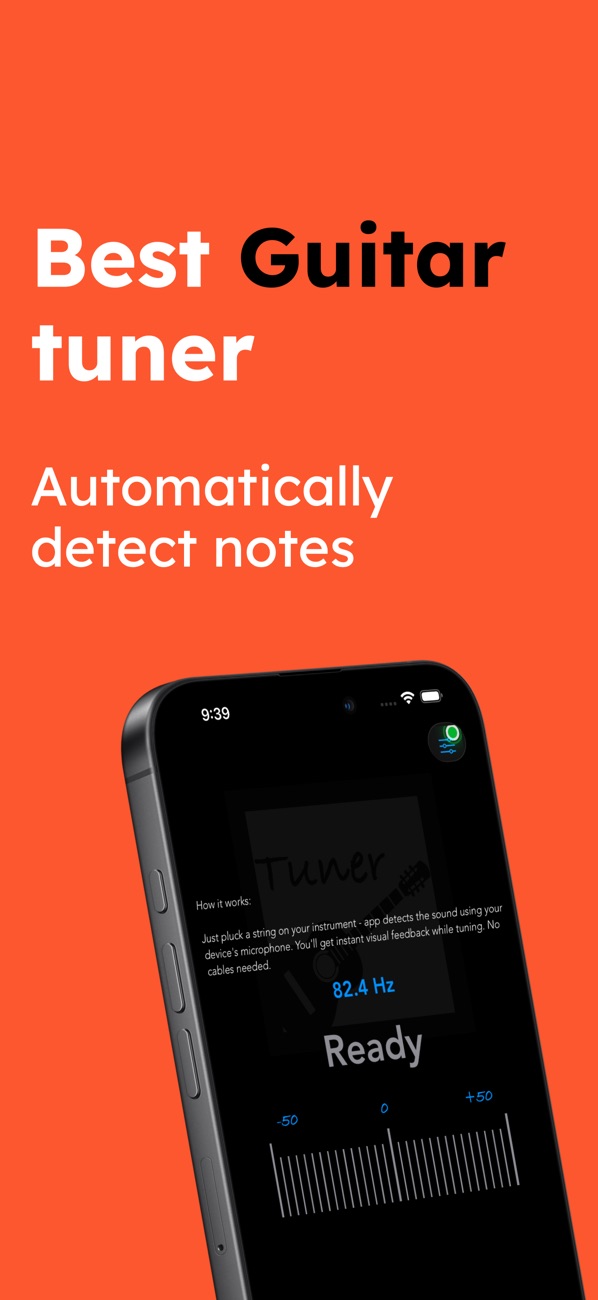
At the time of writing, its App Store listing shows:
- Free, in Music and Utilities, with an optional Premium tier
- First released in June 2020
- 28 ratings in the US store, averaging about 4.1 stars
- Supports iOS 16.0 and later
How the listing maps to the sections above:
| What the listing says | Where it's covered |
|---|---|
| "Real-time pitch detection… accurate to the cent, with no cables or extra hardware" | Measurement-mode session, input tap, autocorrelation with interpolation (sections 2–4) |
| "Chromatic tuner with live Hz display" | Hz → note and cents (section 5) |
| "Color-coded feedback (blue = in tune, yellow = close, red = adjust)" | Three-state cents bands (section 7) |
| "Auto Mode detects the string you're playing automatically" | Nearest target in cents (section 7) |
| "15 tuning presets: Standard, Drop-D, Drop-C, Drop-B, Open-G, Open-D, Open-C, and more" / "Guitar (6-string) and Bass (4-string) modes" | Presets as MIDI note lists (section 7) |
| "Pluck a string near your iPhone microphone" | The noise gate and windowing realities (sections 3–4) |
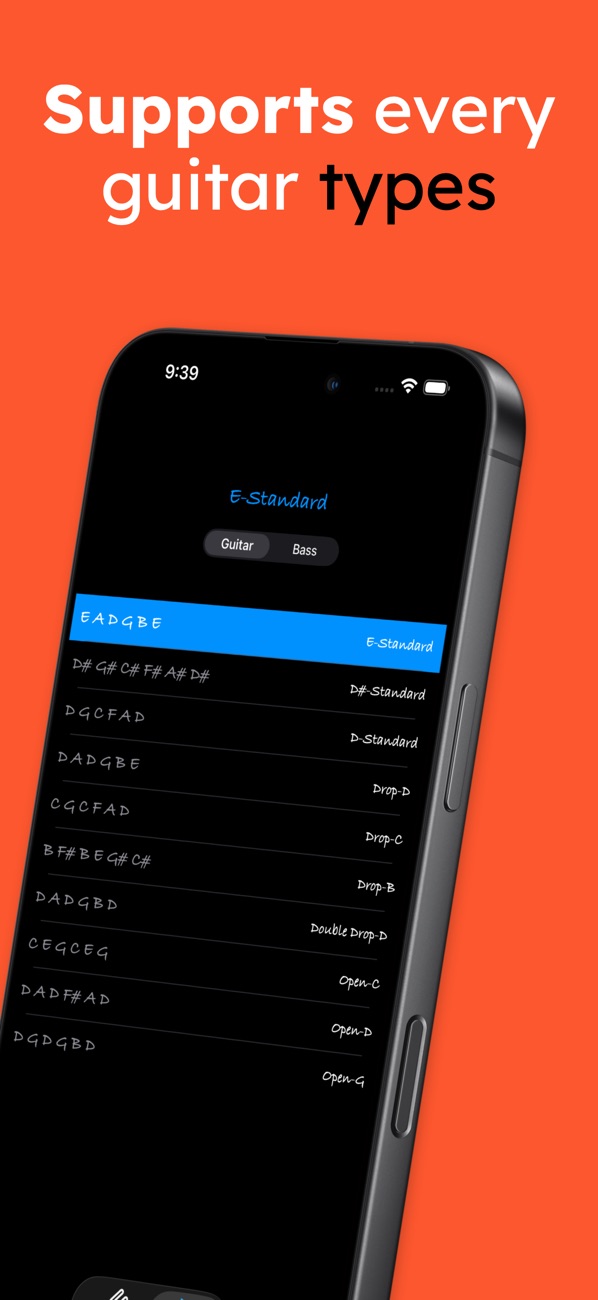
The listing is also clear about the business model: E-Standard, D-Standard and D♯-Standard tunings are free for guitar and bass, while Premium unlocks all 15 presets, Auto Mode and an ad-free experience. Because a preset is just data, the free/premium split costs almost no code: filter the preset list by entitlement.
9. Before you ship a tuner: a checklist
- Test with real instruments, not just a tone generator. Sine waves are easy; a plucked low E with a strong second harmonic is the real test.
- Check the extremes. The bass low E (≈ 41 Hz), any drop tunings you offer, and the guitar high E's upper frets.
- Use the measurement mode.
.measurementavoids system processing colouring the signal. - Tune the noise gate on several devices, in a quiet room and a noisy one.
- Interpolate the peak. Without sub-sample accuracy, readings jump in multi-cent steps on higher notes.
- Smooth, but reset. Use a median plus an exponential average, and reset on silence and on a big jump.
- Measure "nearest string" in cents, never in Hz.
- Release the mic when you're not tuning. Stop the engine, remove the tap and deactivate the session when the screen goes away or the app backgrounds.
- Plan for iOS 27's tap API. Wrap the tap in one place, so moving to
installAudioTapis a one-file change.
Wrapping up
A good tuner is a small pipeline done carefully: a measurement-mode session, a tap feeding a rolling window, autocorrelation with interpolation, clean note maths, and smoothing that knows when to let go. Accelerate does the heavy lifting in a handful of vDSP calls, and SwiftUI does the rest.
Try the app, or see the rest of my work:
- Guitar Tuner: Chromatic (iOS): https://apps.apple.com/us/app/guitar-tuner-chromatic/id1518293355
- All of my free iOS apps: https://apps.apple.com/us/developer/alok-singh/id1508795536
- My portfolio: https://bestlatestapps.com/alok/
If you've built pitch detection and preferred YIN, the McLeod method or a neural approach, I'd love to hear how it compared in the comments.
— Alok Kumar Singh