Building a Live Temple Darshan App for iOS: HLS Streaming, Picture-in-Picture, Time-Zone-Correct Aarti Reminders and Notification Actions
Playing live and recorded video with AVPlayer, keeping darshan going in picture-in-picture, falling back gracefully when a stream is down, scheduling aarti reminders in the temple's time zone for devotees anywhere in the world, "Watch Now" and "Remind Later" actions, a next-aarti widget, and opening a temple in Maps the iOS 26 way

For many people, a daily visit to the temple is no longer a walk down the road. There are elderly parents who can't travel, and families abroad who miss the aarti they grew up with. That's the reason behind Mandir Darshan, my app for watching live darshan from India's temples, including Siddhivinayak, Kashi Vishwanath and Somnath. It sets aarti reminders, and it carries the Bhagavad Gita, chalisas, Panchang and more, with no sign-in.
I've written before about the offline audio side of devotional apps, in my Hanuman Chalisa article. This one is about the live side, which turns out to be a tour of some of the most practical media and notification APIs on iOS:
- streaming HLS video with
AVPlayer - picture-in-picture, so darshan keeps playing while you use other apps
- falling back to recorded video when a live stream is unavailable
- aarti reminders that fire at the right moment wherever the devotee lives
- notification actions, a next-aarti widget, and opening a temple in Apple Maps with the new iOS 26 MapKit initialisers
The APIs are checked against Apple's documentation. Where I describe how I'd build something rather than the shipped code, I say so.
1. Model temples around their own time zone
The most important design decision isn't about video at all. Aarti times belong to the temple, not the phone. A 7:00 a.m. aarti in Varanasi is 7:00 a.m. India time, whether the person watching is in Pune, London or New Jersey. So the model stores times as wall-clock components plus the temple's time zone:
import Foundation
import CoreLocation

struct AartiTime: Codable, Hashable {
    let name: String              // "Mangala Aarti"
    let hour: Int, minute: Int    // wall-clock time at the temple
}

struct Temple: Codable, Identifiable, Hashable {
    let id: String
    let name: String
    let city: String
    let latitude: Double, longitude: Double
    let timeZoneID: String        // "Asia/Kolkata"
    let liveStreamURL: URL?       // HLS (.m3u8) when a live feed is available
    let recordedVideos: [URL]
    let aartis: [AartiTime]

    var timeZone: TimeZone { TimeZone(identifier: timeZoneID) ?? .current }
    var coordinate: CLLocationCoordinate2D { .init(latitude: latitude, longitude: longitude) }
}

extension Temple {
    /// The next occurrence of an aarti, as an absolute Date, computed in the temple's calendar.
    func nextOccurrence(of aarti: AartiTime, after now: Date = .now) -> Date? {
        var calendar = Calendar(identifier: .gregorian)
        calendar.timeZone = timeZone
        return calendar.nextDate(after: now,
                                 matching: DateComponents(hour: aarti.hour, minute: aarti.minute),
                                 matchingPolicy: .nextTime)
    }
}
With this in place, displaying "Mangala Aarti, 7:00 a.m. IST (9:30 p.m. your time)" is a formatting job, and every reminder in section 5 is correct by construction.
2. Playing live darshan with AVPlayer
Live temple streams are typically delivered as HLS, which AVPlayer plays natively. AVPlayerViewController gives you the system controls, AirPlay and picture-in-picture support for free:
import AVKit
import SwiftUI

struct DarshanPlayer: UIViewControllerRepresentable {
    let player: AVPlayer

    func makeUIViewController(context: Context) -> AVPlayerViewController {
        let vc = AVPlayerViewController()
        vc.player = player
        vc.allowsPictureInPicturePlayback = true                    // iOS 9+
        vc.canStartPictureInPictureAutomaticallyFromInline = true   // iOS 14.2+: PiP when the app goes to background
        return vc
    }
    func updateUIViewController(_ vc: AVPlayerViewController, context: Context) {}
}

@MainActor
func makeLivePlayer(for url: URL) -> AVPlayer {
    // Playback category: audio continues with the silent switch on, and PiP is allowed.
    try? AVAudioSession.sharedInstance().setCategory(.playback, mode: .moviePlayback)
    try? AVAudioSession.sharedInstance().setActive(true)

    let item = AVPlayerItem(url: url)
    item.preferredForwardBufferDuration = 6       // a little cushion against weak connections
    let player = AVPlayer(playerItem: item)
    player.automaticallyWaitsToMinimizeStalling = true
    return player
}
Three things are essential for picture-in-picture to work at all:
- The audio session category is
.playback. With the default category, PiP won't start. - The Background Modes capability includes "Audio, AirPlay, and Picture in Picture". Without it, the video stops when the app leaves the foreground.
- The player is shown in
AVPlayerViewController(or anAVPlayerLayermanaged byAVPictureInPictureController, iOS 9+, if you build custom controls).
canStartPictureInPictureAutomaticallyFromInline is the one that makes PiP feel effortless. Swipe home during darshan, and the video floats instead of stopping.
3. Bringing the app back from picture-in-picture
When the user taps the "return" button on the PiP window, iOS asks your app to restore its interface. If you don't, the video goes back into a screen that's no longer showing, and the experience breaks. The delegate method is where you navigate back:
final class PlayerCoordinator: NSObject, AVPlayerViewControllerDelegate {
    var restore: (() -> Void)?

    func playerViewController(_ playerViewController: AVPlayerViewController,
        restoreUserInterfaceForPictureInPictureStopWithCompletionHandler completionHandler: @escaping (Bool) -> Void) {
        restore?()                 // e.g. push the temple's darshan screen back onto the navigation stack
        completionHandler(true)
    }

    // Keep the player alive while PiP runs even if the user navigates away.
    func playerViewControllerShouldAutomaticallyDismissAtPictureInPictureStart(_ vc: AVPlayerViewController) -> Bool {
        false
    }
}
The approach I'd use is to keep the active AVPlayer in an app-level object, not in the darshan screen's state. Then PiP survives navigation, and "return to app" can rebuild the screen around the same player without a reload.
4. When the live stream is down: recorded darshan and playback speed
Live streams go offline: maintenance, network issues at the temple, or outside darshan hours. The listing promises "Recorded videos when live is unavailable", so failure has to be a planned state, not an error alert. I'd watch the item's status and fall back:
import AVFoundation
import Combine

@MainActor
final class DarshanSession: ObservableObject {
    @Published private(set) var isLive = false
    let player = AVPlayer()
    private var statusObservation: NSKeyValueObservation?

    func start(_ temple: Temple) {
        if let live = temple.liveStreamURL {
            play(live, isLive: true, fallback: temple.recordedVideos.first)
        } else if let recorded = temple.recordedVideos.first {
            play(recorded, isLive: false, fallback: nil)
        }
    }

    private func play(_ url: URL, isLive: Bool, fallback: URL?) {
        let item = AVPlayerItem(url: url)
        statusObservation = item.observe(\.status) { [weak self] item, _ in
            Task { @MainActor in
                guard let self else { return }
                switch item.status {
                case .readyToPlay: self.isLive = isLive; self.player.play()
                case .failed: if let fallback { self.play(fallback, isLive: false, fallback: nil) }
                default: break
                }
            }
        }
        player.replaceCurrentItem(with: item)
    }
}
Playback speed only makes sense for recorded video. On iOS 16+, AVPlayerViewController.speeds (an array of AVPlaybackSpeed) controls the speed menu, and AVPlayer.defaultRate sets the rate that play() uses. For a live stream, I'd set speeds = [] so the menu disappears. Fast-forwarding past "now" isn't possible, and showing the control would only confuse.
5. Aarti reminders that are right everywhere
"Aarti schedules with reminders 5, 10, 15, or 30 minutes before." This is where the temple-time-zone model pays off. UNCalendarNotificationTrigger (iOS 10+) matches date components, and those components can carry their own time zone:
import UserNotifications

enum AartiReminders {
    static let category = "AARTI_REMINDER"

    static func schedule(_ aarti: AartiTime, at temple: Temple, minutesBefore lead: Int) async throws {
        // Subtract the lead time in the temple's own calendar (handles 6:05 - 10 min = 5:55).
        var calendar = Calendar(identifier: .gregorian)
        calendar.timeZone = temple.timeZone
        let aartiToday = calendar.date(from: DateComponents(hour: aarti.hour, minute: aarti.minute))!
        let reminder = calendar.date(byAdding: .minute, value: -lead, to: aartiToday)!

        var components = calendar.dateComponents([.hour, .minute], from: reminder)
        components.timeZone = temple.timeZone            // fire at temple time, wherever the phone is

        let content = UNMutableNotificationContent()
        content.title = "\(aarti.name) at \(temple.name)"
        content.body = "Begins in \(lead) minutes. Tap to join the darshan."
        content.categoryIdentifier = category
        content.userInfo = ["templeID": temple.id]
        content.sound = .default

        let request = UNNotificationRequest(
            identifier: "aarti.\(temple.id).\(aarti.name)",          // stable: rescheduling replaces it
            content: content,
            trigger: UNCalendarNotificationTrigger(dateMatching: components, repeats: true))
        try await UNUserNotificationCenter.current().add(request)
    }
}
Why this works for a devotee in New Jersey: the trigger's components say "05:55 in Asia/Kolkata", so iOS fires it at the correct absolute moment, which locally is the previous evening. No manual offset maths, and no breakage when daylight saving starts or ends in the user's country (India doesn't observe it, but the US does).
Practical limits:
- Use stable identifiers. Changing the lead time from 10 to 15 minutes re-adds a request with the same ID, which replaces the old one instead of duplicating it.
- Watch the pending-notification cap. iOS keeps a limited number of scheduled local notifications per app (commonly cited as 64). Repeating daily triggers use one slot per aarti, which is why I'd prefer them over scheduling individual dates.
- Time-sensitive interruption (
interruptionLevel = .timeSensitive, iOS 15+) can break through Focus modes, but it requires the Time Sensitive Notifications capability and should be the user's choice.
6. "Watch Now" and "Remind Later"
The listing mentions two notification actions, "Watch Now" and "Remind Later". Both are a UNNotificationCategory registered at launch, plus a delegate that handles the response:
import UserNotifications

final class NotificationRouter: NSObject, UNUserNotificationCenterDelegate {
    var openTemple: ((String) -> Void)?

    func register() {
        let watch = UNNotificationAction(identifier: "WATCH_NOW", title: "Watch Now", options: [.foreground])
        let later = UNNotificationAction(identifier: "REMIND_LATER", title: "Remind Later", options: [])
        let category = UNNotificationCategory(identifier: AartiReminders.category,
                                              actions: [watch, later], intentIdentifiers: [])
        let center = UNUserNotificationCenter.current()
        center.setNotificationCategories([category])
        center.delegate = self
    }

    func userNotificationCenter(_ center: UNUserNotificationCenter,
                                didReceive response: UNNotificationResponse) async {
        let content = response.notification.request.content
        guard let templeID = content.userInfo["templeID"] as? String else { return }

        switch response.actionIdentifier {
        case "WATCH_NOW", UNNotificationDefaultActionIdentifier:
            await MainActor.run { openTemple?(templeID) }        // deep-link straight into the player
        case "REMIND_LATER":
            let again = UNNotificationRequest(
                identifier: "later.\(templeID).\(UUID().uuidString)",
                content: content,
                trigger: UNTimeIntervalNotificationTrigger(timeInterval: 5 * 60, repeats: false))
            try? await center.add(again)
        default: break
        }
    }

    // Show reminders even while the app is open (e.g. while reading the Gita).
    func userNotificationCenter(_ center: UNUserNotificationCenter,
                                willPresent notification: UNNotification) async -> UNNotificationPresentationOptions {
        [.banner, .sound]
    }
}
.foreground on "Watch Now" opens the app; "Remind Later" works without opening it. Set the delegate before the app finishes launching (in the app delegate), or the response to a notification that launched the app can be missed.
7. A next-aarti widget and opening Maps
The same nextOccurrence(of:) function from section 1 powers a "next aarti" widget. A WidgetKit TimelineProvider (iOS 14+) can return one entry per upcoming aarti, so the widget updates itself at each one without the app running:
import WidgetKit

struct NextAartiEntry: TimelineEntry { let date: Date; let temple: String; let aarti: String; let at: Date }

func timeline(for temples: [Temple], now: Date = .now) -> Timeline<NextAartiEntry> {
    let upcoming = temples.flatMap { temple in
        temple.aartis.compactMap { a in temple.nextOccurrence(of: a, after: now).map { (temple.name, a.name, $0) } }
    }.sorted { $0.2 < $1.2 }.prefix(6)

    var entries: [NextAartiEntry] = []
    var shownFrom = now
    for (temple, aarti, at) in upcoming {
        entries.append(NextAartiEntry(date: shownFrom, temple: temple, aarti: aarti, at: at))
        shownFrom = at                                    // switch to the next one once this begins
    }
    return Timeline(entries: entries, policy: .after(shownFrom))
}
"Open in Maps" changed in iOS 26. Apple's documentation marks MKMapItem.init(placemark:) as deprecated in iOS 26, with new initialisers built on CLLocation and the new MKAddress type. Since the app supports iOS 17.6, I'd branch:
import MapKit

func openInMaps(_ temple: Temple) {
    let item: MKMapItem
    if #available(iOS 26, *) {
        let location = CLLocation(latitude: temple.latitude, longitude: temple.longitude)
        item = MKMapItem(location: location, address: MKAddress(fullAddress: "\(temple.name), \(temple.city)", shortAddress: temple.city))
    } else {
        item = MKMapItem(placemark: MKPlacemark(coordinate: temple.coordinate))
    }
    item.name = temple.name
    item.openInMaps(launchOptions: nil)                   // iOS 6+
}
8. Real-world example: Mandir Darshan
This article comes from building Mandir Darshan. The code above is the approach I'd use, written for this article, not a copy of the app's source.
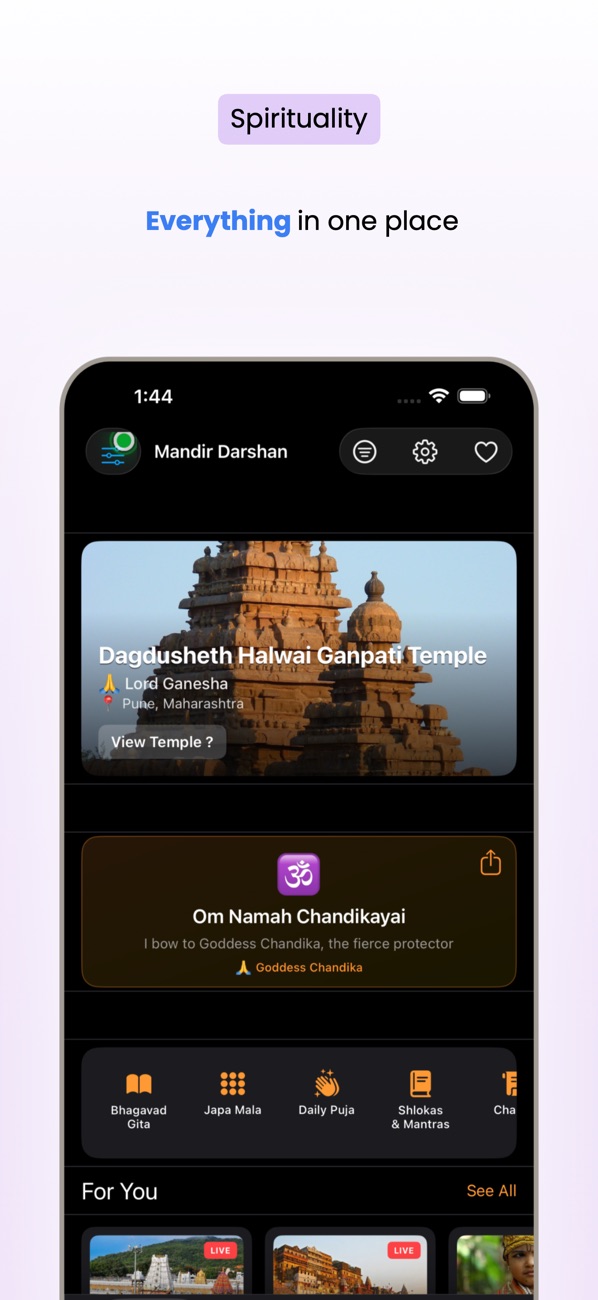
At the time of writing, its App Store listing shows:
- Free, in Lifestyle and Utilities
- First released in February 2026
- 1 rating in the US store, 5 stars
- Supports iOS 17.6 and later
How the listing maps to this article:
| What the listing says | Where it's covered |
|---|---|
| "Watch live streaming from famous temples across India" | HLS with AVPlayer (section 2) |
| "picture-in-picture so you can keep darshan while using other apps" | PiP setup and UI restore (sections 2–3) |
| "Recorded videos when live is unavailable; playback speed control" | Status-based fallback and speeds (section 4) |
| "Aarti schedules with reminders 5, 10, 15, or 30 minutes before" | Time-zone-aware calendar triggers (section 5) |
| "Notification actions: Watch Now or Remind Later" | Categories and the delegate (section 6) |
| "Home Screen widgets: Live Darshan (live count/next aarti)…" | A next-aarti timeline (section 7) |
| "Share temple or open in Maps" | MKMapItem with the iOS 26 branch (section 7) |
| "Data stored on your device; no sign-in required" | Everything here is local: notifications, favourites, widget data |
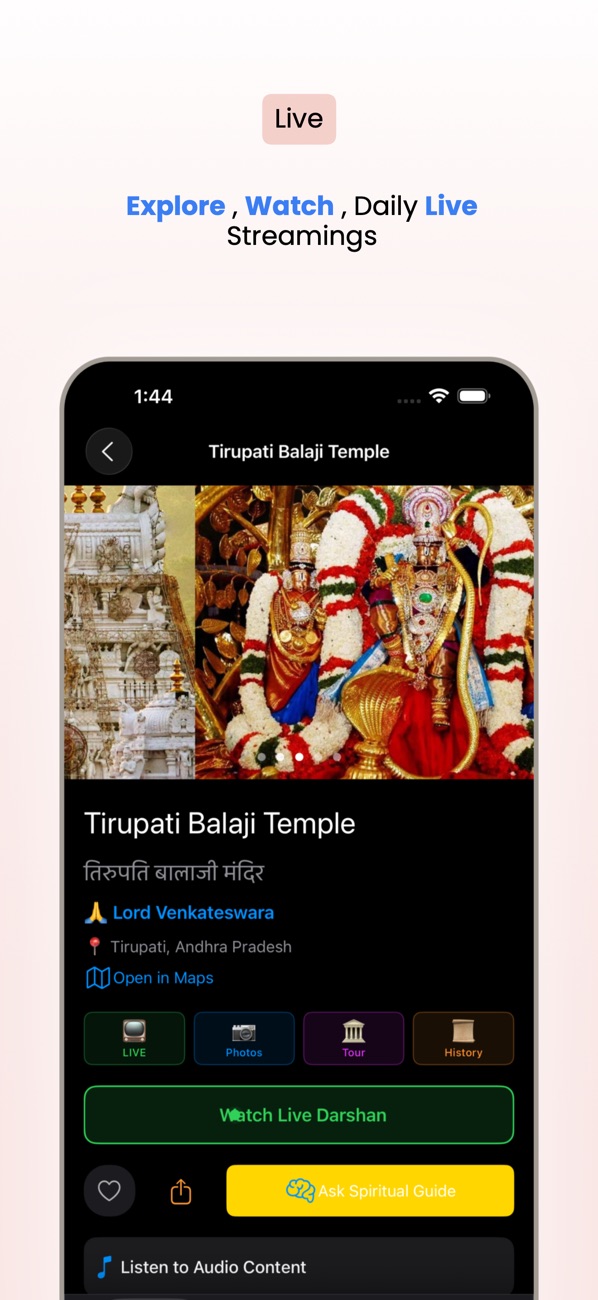
The listing covers much more than this article does: the full Bhagavad Gita with Sanskrit, transliteration and translation, chalisas, Sunderkand, a Japa Mala counter, Panchang and festivals, English and Hindi, and voice search. Each of those could be its own article.
9. Before you ship a live-streaming devotional app: a checklist
- Times belong to the temple. Every schedule stores its own time zone, and reminders are tested with the phone set to the US and UK.
- PiP works. The audio session is
.playback, the background mode is on, automatic PiP from inline is set, and UI restore is implemented. - Stream failure is a state, not an error. There's a recorded fallback and a clear "Live" or "Recorded" badge.
- There's no speed control on live.
- Reminders use stable IDs and repeating triggers, and stay under the pending limit.
- The notification delegate is set at launch, and "Watch Now" deep-links into the right temple.
- The widget timeline advances at each aarti and has a sensible refresh policy.
- MapKit is branched for iOS 26. No deprecated initialisers on new systems.
- Respect and accuracy. Temple names, deity information and aarti times are checked, and the app never shows a stream it doesn't have the right to show.
- Be mindful of data use. Live video on cellular can be expensive; consider a Wi-Fi-only option.
Wrapping up
The technology in a darshan app is ordinary: AVPlayer, local notifications, WidgetKit and MapKit. What makes it work for real people is getting the human details right. An aarti happens at temple time, a stream can be down, and a devotee might be watching from the other side of the world in a floating window while they do something else. Model those details first, and the APIs fall into place.
Try the app, or explore my other work:
- Mandir Darshan (iOS): https://apps.apple.com/us/app/mandir-darshan/id6756669016
- All of my free iOS apps: https://apps.apple.com/us/developer/alok-singh/id1508795536
- My portfolio: https://bestlatestapps.com/alok/
Which temple's darshan would you most like to see in the app? Let me know in the comments.
— Alok Kumar Singh