Building a Real-Time Mic-to-Speaker App on iOS with AVAudioEngine
Live audio passthrough in Swift: session setup, permissions, feedback, interruptions and route changes, from shipping an app that does exactly this
Most audio tutorials on iOS cover one of two things: playing a file, or recording one. Very few cover the strange in-between case where the microphone and the speaker are both live at the same time, and whatever goes in comes straight back out.
That in-between case is exactly what my app Mic to Speaker – Virtual Mic does. You plug your iPhone into a speaker, or connect over Bluetooth or AirPlay, tap the screen, and your voice comes out of the speaker. I first shipped it in May 2020. Since then it has collected more than 3,400 ratings on the US App Store, and it is still the most popular of the 24 free apps I have published under my developer name.
It looks like a weekend project, and the first working version really is only a few dozen lines of Swift. But the gap between "it works on my desk" and "it works for thousands of people on random speakers, in cars, during phone calls" is where the real work lives.
This is the guide I wish I'd had: permissions, session setup, the engine graph, feedback, interruptions, route changes, background audio and App Store review. I've checked API names and availability against Apple's developer documentation and flag what's new or recently changed.
1. The problem: what "mic to speaker" really needs
On paper the requirement is one sentence: take audio from the microphone and play it through the speaker, right now. In practice that sentence hides three hard requirements.
Low latency. When you hear your own voice back, your brain notices delay quickly. A little sounds "roomy"; more sounds like an echo and makes it hard to keep talking. Every buffer between mic and speaker adds delay, so you want the smallest buffers the device can reliably handle.
The right output route. By default, when an iPhone records and plays at the same time, output goes to the receiver, the small earpiece you hold to your ear for calls. Users expect the loud bottom speaker, their Bluetooth speaker, the car stereo or an AirPlay device. Getting audio to the right place, and keeping it there, is half the job.
No howling feedback. If the mic can hear the speaker, the sound loops and grows into that painful squeal everyone knows from school assemblies. On a phone, with mic and speaker centimetres apart, that's the default outcome unless you plan for it.
I underestimated all three. My first build played through the earpiece. The second howled as soon as I turned the volume up. The third worked beautifully until a phone call came in, then stayed silent until I killed the app. Each section below is, roughly, one of those lessons.
2. Microphone permission, the modern way
Before anything else, you need the user's permission to use the microphone. Two things are required.
First, a purpose string. Add NSMicrophoneUsageDescription to your Info.plist. Apple's documentation is blunt about this: if your app tries to access the microphone without this key, the app exits. Make it specific, for example: "Virtual Mic uses the microphone to play your voice live through your speaker or headphones."
Second, the request itself. In iOS 17, Apple moved record permission from AVAudioSession to a new class, AVAudioApplication. The old AVAudioSession.requestRecordPermission(_:) is deprecated as of iOS 17. The new API has both a completion-handler version and an async version:
class func requestRecordPermission() async -> Bool
If your deployment target is below iOS 17, you need both paths. Mic to Speaker currently supports iOS 16.6 and later, so this is not theoretical for me. Here's a small helper that handles both, plus the "denied" case:
import AVFoundation
import UIKit

@MainActor
enum MicPermissionManager {

    /// Prompts if needed. Returns true if we may record.
    static func request() async -> Bool {
        if #available(iOS 17.0, *) {
            return await AVAudioApplication.requestRecordPermission()
        } else {
            return await withCheckedContinuation { continuation in
                AVAudioSession.sharedInstance().requestRecordPermission { granted in
                    continuation.resume(returning: granted)
                }
            }
        }
    }

    /// The system will not show the prompt again after a denial,
    /// so the only way forward is the Settings app.
    static func openSettings() {
        guard let url = URL(string: UIApplication.openSettingsURLString) else { return }
        UIApplication.shared.open(url)
    }
}
Three practical notes:
- Ask at the moment of need, when the user first taps "start", not at launch.
- Denied is permanent from the app's side. The system won't prompt again, so show a short explanation and a button that calls
openSettings(). - Silence is not an error. Apple's docs note that without permission the app captures only silence. The engine starts "fine" and plays nothing, so always check permission first or you'll get confusing "no sound" bug reports.
3. Configuring AVAudioSession
AVAudioSession is how your app tells iOS what kind of audio it does. Get this wrong and nothing else matters.
Category and options
For simultaneous input and output you need the .playAndRecord category. On top of that, the options do most of the heavy lifting:
.defaultToSpeaker: uses the built-in loudspeaker instead of the earpiece when nothing else is connected. This one option fixes "why is it so quiet?".allowBluetoothA2DP: lets output go to high-quality Bluetooth speakers and headphones. A2DP is output-only, so the iPhone's mic stays the input, which is usually what a mic-to-speaker app wants..allowBluetoothHFP(formerly.allowBluetooth): lets Bluetooth hands-free devices act as input and output. Apple's current docs mark the old.allowBluetoothname deprecated in favour of.allowBluetoothHFP; on an older SDK, use.allowBluetooth. HFP is the "phone call" profile with noticeably lower quality than A2DP, so I enable it only when the user wants a headset's own microphone..allowAirPlay: lets output go to AirPlay devices; for.playAndRecordyou must set it explicitly. AirPlay buffers over the network, so expect extra latency you can't control.
Mode
The mode tunes the session for a use case:
.default: no special processing; best for music and singing, and required for echo-cancelled input (below)..voiceChat: tuned for two-way voice. Apple's docs say it optimises EQ for voice, limits routes to voice-suitable ones and automatically applies the Bluetooth HFP option. Great for speech, not for music..measurement: minimises system signal processing for the rawest input.
I default to .default and offer voice processing (section 5) as a user choice.
Buffer duration and sample rate
You can ask for a smaller I/O buffer and a particular sample rate:
try session.setPreferredIOBufferDuration(0.005)  // a request, not a guarantee
try session.setPreferredSampleRate(48_000)
These are preferences; the system decides based on hardware and route. After activating, read ioBufferDuration and sampleRate to see what you actually got, and log them. Bluetooth routes often differ from what you asked for.
Echo-cancelled input (iOS 18.2+)
Starting with iOS 18.2, AVAudioSession has three new members:
isEchoCancelledInputAvailable— whether the device and current setup support itsetPrefersEchoCancelledInput(_:)— ask for itisEchoCancelledInputEnabled— whether the system actually turned it on
Per Apple's docs, it works only with .playAndRecord and .default mode, on certain 2024-or-later iPhones, on the built-in mic and speaker route. It's tuned for a wider range of sounds than voice processing, and can switch off when the route changes (say, a headset is plugged in). Treat it as a bonus on supported hardware, not your feedback strategy.
Temporary speaker override
For a "force loudspeaker" toggle, use overrideOutputAudioPort(_:). It temporarily changes the current route, and the override clears when the route changes again.
Putting it together
import AVFoundation

enum AudioSessionConfigurator {

    static func configure(allowBluetoothMic: Bool = false,
                          preferEchoCancellation: Bool = true) throws {
        let session = AVAudioSession.sharedInstance()

        var options: AVAudioSession.CategoryOptions = [
            .defaultToSpeaker,
            .allowBluetoothA2DP,
            .allowAirPlay
        ]
        if allowBluetoothMic {
            // Use .allowBluetooth if your SDK predates .allowBluetoothHFP.
            options.insert(.allowBluetoothHFP)
        }

        try session.setCategory(.playAndRecord, mode: .default, options: options)
        try session.setPreferredSampleRate(48_000)
        try session.setPreferredIOBufferDuration(0.005)

        if #available(iOS 18.2, *),
           preferEchoCancellation,
           session.isEchoCancelledInputAvailable {
            try session.setPrefersEchoCancelledInput(true)
        }

        try session.setActive(true)

        print("Sample rate: \(session.sampleRate) Hz, "
            + "IO buffer: \(session.ioBufferDuration * 1000) ms, "
            + "route: \(session.currentRoute.outputs.map(\.portType.rawValue))")
    }

    /// Force the built-in speaker (true) or go back to the normal route (false).
    static func setSpeakerOverride(_ on: Bool) throws {
        try AVAudioSession.sharedInstance()
            .overrideOutputAudioPort(on ? .speaker : .none)
    }

    static func deactivate() {
        try? AVAudioSession.sharedInstance()
            .setActive(false, options: .notifyOthersOnDeactivation)
    }
}
4. The AVAudioEngine graph
AVAudioEngine lets you connect audio nodes like guitar pedals. For mic-to-speaker the graph is short:
inputNode → [EQ] → [Reverb] → mainMixerNode → outputNode
inputNodeis the current microphone input.AVAudioUnitEQgives bass/treble bands and aglobalGainboost (documented range −96 to +24 dB).AVAudioUnitReverbadds room character;wetDryMixruns 0–100%, where 0 is fully dry.mainMixerNodeis created and wired tooutputNodethe first time you access it. ItsoutputVolume(0.0–1.0) is a natural master volume.
Format matching
The most common live-audio crash is a format mismatch. My rule: use the input node's own format for every connection carrying the mic signal, and let the mixer convert for the output hardware. Also validate it first: with no input available, the format can come back with a 0 Hz sample rate or zero channels, and connecting with that raises an exception Swift can't catch.
The complete class
Here's a minimal, complete engine class: one object that owns the engine, exposes a few controls and starts and stops cleanly.
import AVFoundation

enum LiveAudioError: Error {
    case noInputAvailable
}

final class LiveAudioEngine {

    private let engine = AVAudioEngine()
    private let eq = AVAudioUnitEQ(numberOfBands: 2)
    private let reverb = AVAudioUnitReverb()

    private(set) var isRunning = false

    // MARK: Controls

    /// Master volume, 0.0 ... 1.0
    var volume: Float {
        get { engine.mainMixerNode.outputVolume }
        set { engine.mainMixerNode.outputVolume = min(max(newValue, 0), 1) }
    }

    /// Extra input gain in dB, clamped to a sane range.
    var boostDB: Float {
        get { eq.globalGain }
        set { eq.globalGain = min(max(newValue, -24), 24) }
    }

    /// Bass and treble in dB.
    var bassDB: Float {
        get { eq.bands[0].gain }
        set { eq.bands[0].gain = min(max(newValue, -12), 12) }
    }
    var trebleDB: Float {
        get { eq.bands[1].gain }
        set { eq.bands[1].gain = min(max(newValue, -12), 12) }
    }

    /// Reverb amount, 0 (off) ... 100
    var reverbMix: Float {
        get { reverb.wetDryMix }
        set { reverb.wetDryMix = min(max(newValue, 0), 100) }
    }

    // MARK: Setup

    init() {
        let bass = eq.bands[0]
        bass.filterType = .lowShelf
        bass.frequency = 150
        bass.gain = 0
        bass.bypass = false

        let treble = eq.bands[1]
        treble.filterType = .highShelf
        treble.frequency = 6_000
        treble.gain = 0
        treble.bypass = false

        reverb.loadFactoryPreset(.mediumRoom)
        reverb.wetDryMix = 0

        engine.attach(eq)
        engine.attach(reverb)
    }

    // MARK: Start / stop

    func start() throws {
        guard !isRunning else { return }

        let input = engine.inputNode
        let format = input.outputFormat(forBus: 0)
        guard format.sampleRate > 0, format.channelCount > 0 else {
            throw LiveAudioError.noInputAvailable
        }

        // Rebuild connections every time: the input format can change
        // between runs (new route, new sample rate).
        engine.disconnectNodeOutput(input)
        engine.disconnectNodeOutput(eq)
        engine.disconnectNodeOutput(reverb)

        engine.connect(input, to: eq, format: format)
        engine.connect(eq, to: reverb, format: format)
        engine.connect(reverb, to: engine.mainMixerNode, format: format)

        engine.prepare()
        try engine.start()
        isRunning = true
    }

    func stop() {
        guard isRunning else { return }
        engine.stop()
        isRunning = false
    }

    /// Voice processing (echo cancellation, AGC, noise suppression).
    /// Must be changed while the engine is stopped.
    func setVoiceProcessing(_ enabled: Bool) throws {
        let wasRunning = isRunning
        stop()
        try engine.inputNode.setVoiceProcessingEnabled(enabled)
        if wasRunning { try start() }
    }

    /// Exposed so the owner can observe engine configuration changes.
    var underlyingEngine: AVAudioEngine { engine }
}
And using it from a view model:
@MainActor
final class MicViewModel: ObservableObject {
    @Published var isLive = false
    @Published var errorMessage: String?

    let audio = LiveAudioEngine()

    func toggle() async {
        if audio.isRunning {
            audio.stop()
            AudioSessionConfigurator.deactivate()
            isLive = false
            return
        }

        guard await MicPermissionManager.request() else {
            errorMessage = "Microphone access is off. Turn it on in Settings."
            return
        }

        do {
            try AudioSessionConfigurator.configure()
            audio.volume = 0.3          // start low, always
            try audio.start()
            isLive = true
        } catch {
            errorMessage = "Couldn't start audio: \(error.localizedDescription)"
        }
    }
}
Note audio.volume = 0.3. Starting quiet is a safety feature, not a nicety.
5. Taming feedback and latency
No single switch removes feedback. There are trade-offs; pick sensible defaults and let the user adjust.
Headphones vs. speaker
The most reliable fix is physics: if the mic can't hear the speaker, there's no loop. With headphones, feedback basically disappears. With a Bluetooth speaker across the room, it's manageable. With the phone's own loudspeaker centimetres from the mic, you're fighting acoustics at any useful volume.
That's why my App Store listing has plain "Safety tips": start with low volume, connect speakers before turning on, increase volume gradually, keep the device away from speakers. They came straight from user reviews and support emails.
Voice processing
setVoiceProcessingEnabled(_:) (on AVAudioIONode, iOS 13+) turns on Apple's voice processing I/O: echo cancellation, automatic gain control and noise suppression, the same family used for calls. isVoiceProcessingAGCEnabled on the input node lets you keep echo cancellation but drop automatic gain.
- Change it while the engine is stopped. It reconfigures the I/O unit and the input format can change, which is why
LiveAudioEnginerebuilds connections on everystart(). - It changes the sound. Tuned for speech, it can make singing and instruments sound processed, so I make it a user choice.
- It's not magic. It reduces the loop; at high enough volume on the built-in speaker you can still get feedback.
Buffer size trade-offs
Smaller buffers mean lower latency but less time for the audio thread before the next deadline; miss it and you get clicks and dropouts. Larger buffers are smoother, but you hear yourself later. My approach:
- Request a small buffer, then read back what you got.
- Keep the chain light. Apple's built-in EQ and reverb are fine; heavy custom DSP is where trouble starts.
- Never allocate, lock or do file I/O on the real-time thread. In a tap (level meter, recording), copy what you need and hand it off.
- Accept that Bluetooth and AirPlay add buffering you can't remove. I tell users plainly that wired gives the lowest delay.
I'm deliberately not quoting millisecond numbers. Latency depends on device, iOS version, route and granted buffer size; the only honest number is the one you measure on your own devices.
6. Interruptions and route changes
This separates a demo from a shipped app. Real phones get calls, alarms, Siri, other apps taking over audio, and headphones unplugged mid-sentence.
Interruptions
When another session (say, a phone call) takes over, the system posts AVAudioSession.interruptionNotification. On .began, the system has already stopped your audio; update state and UI. On .ended, the options may include .shouldResume, a hint that resuming without user input is appropriate.
What's new: Apple's latest docs mark .shouldResume deprecated as of iOS 27 in favour of a newer resumptionRecommendationNotification. It still works on the versions most apps support, so the sample uses it; on the newest SDK, see Apple's "Handling audio interruptions" article.
For a live mic I'm conservative: auto-resume only if the user was live before and the system says resuming is fine. A mic that silently turns itself back on after a call is a privacy surprise.
Route changes
AVAudioSession.routeChangeNotification carries a reason. The critical one is .oldDeviceUnavailable: headphones unplugged or Bluetooth disconnected. Apple's guidance for media apps is to pause; for a live mic it matters even more, because audio jumps to the loudspeaker and can instantly howl. Stop first, let the user decide. For .newDeviceAvailable, keep going but rebuild the graph, since the input format may have changed.
Media services reset
Rarely, the media server restarts and the system posts AVAudioSession.mediaServicesWereResetNotification. Every audio object is now invalid: recreate the engine and reconfigure the session. Separately, AVAudioEngine posts .AVAudioEngineConfigurationChange when the hardware I/O format changes; the engine stops, and you reconnect and restart.
Putting it together
import AVFoundation

@MainActor
final class AudioEventsHandler {

    private var engine: LiveAudioEngine
    private var wasLiveBeforeInterruption = false
    private var observers: [NSObjectProtocol] = []
    var onStateChange: ((Bool) -> Void)?

    init(engine: LiveAudioEngine) {
        self.engine = engine
        observe()
    }

    deinit {
        observers.forEach { NotificationCenter.default.removeObserver($0) }
    }

    private func observe() {
        let center = NotificationCenter.default
        let session = AVAudioSession.sharedInstance()

        observers.append(center.addObserver(
            forName: AVAudioSession.interruptionNotification,
            object: session, queue: .main) { [weak self] note in
                MainActor.assumeIsolated { self?.handleInterruption(note) }
            })

        observers.append(center.addObserver(
            forName: AVAudioSession.routeChangeNotification,
            object: session, queue: .main) { [weak self] note in
                MainActor.assumeIsolated { self?.handleRouteChange(note) }
            })

        observers.append(center.addObserver(
            forName: AVAudioSession.mediaServicesWereResetNotification,
            object: session, queue: .main) { [weak self] _ in
                MainActor.assumeIsolated { self?.handleMediaServicesReset() }
            })

        observers.append(center.addObserver(
            forName: .AVAudioEngineConfigurationChange,
            object: engine.underlyingEngine, queue: .main) { [weak self] _ in
                MainActor.assumeIsolated { self?.restartIfNeeded() }
            })
    }

    private func handleInterruption(_ note: Notification) {
        guard let info = note.userInfo,
              let raw = info[AVAudioSessionInterruptionTypeKey] as? UInt,
              let type = AVAudioSession.InterruptionType(rawValue: raw) else { return }

        switch type {
        case .began:
            wasLiveBeforeInterruption = engine.isRunning
            engine.stop()
            onStateChange?(false)

        case .ended:
            let optionsRaw = info[AVAudioSessionInterruptionOptionKey] as? UInt ?? 0
            let options = AVAudioSession.InterruptionOptions(rawValue: optionsRaw)
            if wasLiveBeforeInterruption && options.contains(.shouldResume) {
                do {
                    try AVAudioSession.sharedInstance().setActive(true)
                    try engine.start()
                    onStateChange?(true)
                } catch {
                    onStateChange?(false)
                }
            }
            wasLiveBeforeInterruption = false

        @unknown default:
            break
        }
    }

    private func handleRouteChange(_ note: Notification) {
        guard let info = note.userInfo,
              let raw = info[AVAudioSessionRouteChangeReasonKey] as? UInt,
              let reason = AVAudioSession.RouteChangeReason(rawValue: raw) else { return }

        switch reason {
        case .oldDeviceUnavailable:
            // Headphones unplugged / Bluetooth gone: stop before we howl.
            engine.stop()
            onStateChange?(false)
        case .newDeviceAvailable, .categoryChange, .override:
            restartIfNeeded()
        default:
            break
        }
    }

    private func handleMediaServicesReset() {
        // Every audio object is invalid now. Rebuild from scratch.
        engine.stop()
        engine = LiveAudioEngine()
        try? AudioSessionConfigurator.configure()
        onStateChange?(false) // let the user start again
    }

    private func restartIfNeeded() {
        guard engine.isRunning else { return }
        engine.stop()
        do {
            try engine.start()   // reconnects with the new input format
        } catch {
            onStateChange?(false)
        }
    }
}
In production you'd also re-register the configuration observer for the new engine after a reset and hand it back to its owner; I've kept the shape minimal.
7. Background audio and App Store notes
Background audio
To keep the mic live with the screen locked, add audio to UIBackgroundModes (Xcode: Background Modes → "Audio, AirPlay, and Picture in Picture"). With an active .playAndRecord session and a running engine, iOS keeps the app alive and shows its microphone-in-use indicator, so users always know.
The flip side: when the user stops, really stop. Stop the engine and deactivate with .notifyOthersOnDeactivation so paused music and podcasts can resume. Holding the session forever drains battery and blocks other audio.
App Store review considerations
- A specific purpose string, in the user's words.
- Background audio must be real. Declaring the
audiomode means actually producing audible content in the background; an idle app holding the session doesn't qualify. - An obvious "live" state: a big on/off control and a clear indicator.
- Honest privacy. If you record sessions, say so and say where they're stored, and keep your App Privacy details consistent.
- Don't over-promise. If the app can't act as a system-wide mic for a computer or other apps, don't imply it can.
8. Real-world example: Virtual Mic, a.k.a. Mic to Speaker
Everything above comes from building and maintaining my own apps. The main one is on the App Store as Mic to Speaker – Virtual Mic.
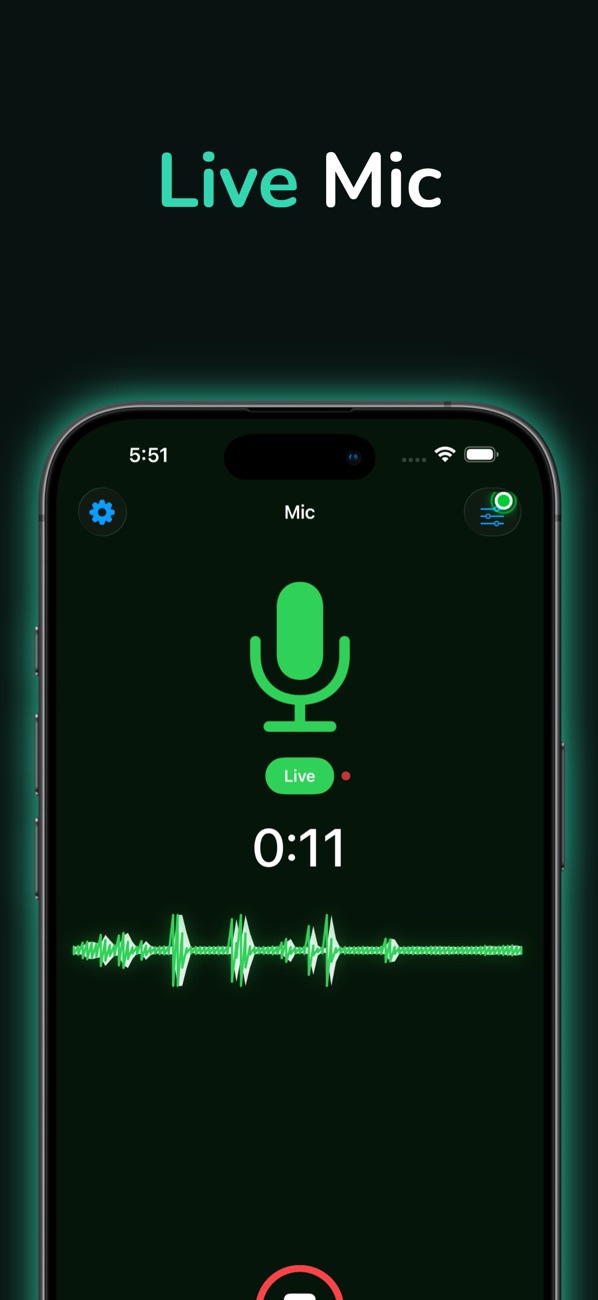
At the time of writing, its public App Store listing shows:
- Free, in the Music and Utilities categories
- First released in May 2020
- About 3,400 ratings in the US store, averaging around 4.5 stars
- Supports iOS 16.6 and later, on iPhone and iPad
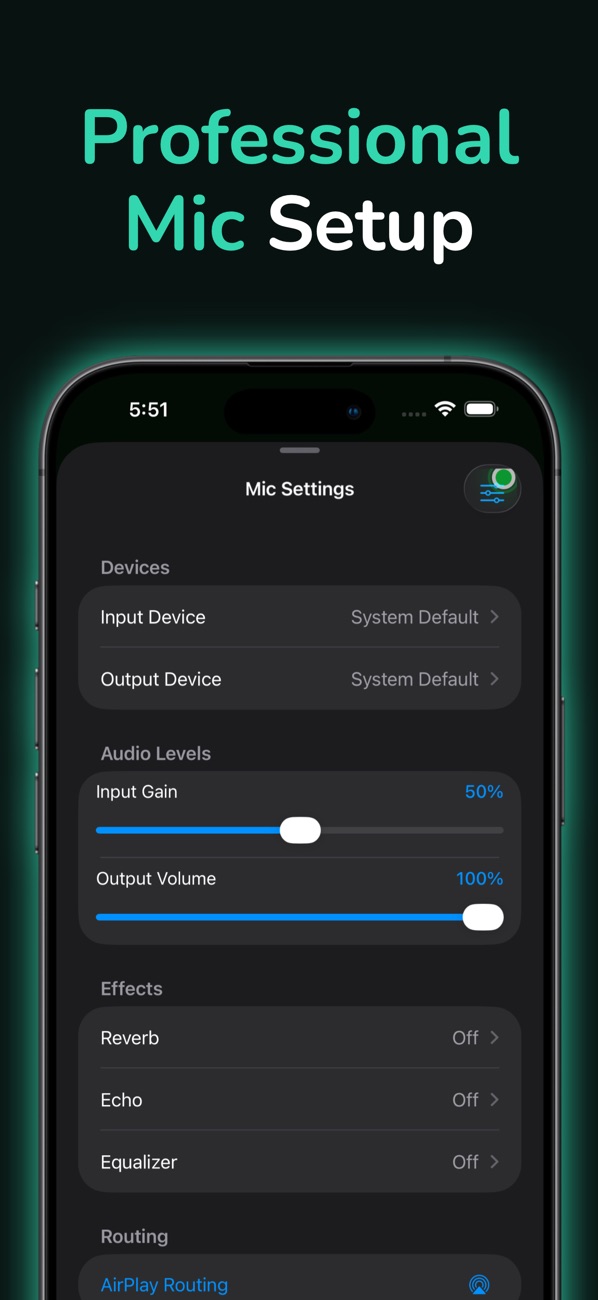
The listing describes the core idea simply: "Use your device as a live microphone! Connect to any speaker and your voice comes out loud and clear." Here's how the listing's features map to the techniques in this article:
| What the listing says | What makes it work |
|---|---|
| "Open the app and tap the screen. That's it!" / "One tap to turn on or off" | Permission request on first tap (section 2), then session + engine start (sections 3–4) |
| "Connect via Bluetooth, AirPlay, or cable" | .playAndRecord with .defaultToSpeaker, .allowBluetoothA2DP, .allowAirPlay (section 3) |
| "Works in the background" / "Runs even when screen is locked" | UIBackgroundModes → audio, active session, running engine (section 7) |
| "Add echo and reverb… Adjust bass and treble. Make your voice louder or softer. Everything updates in real-time" | AVAudioUnitReverb, AVAudioUnitEQ bands and gain, mixer volume, all live in the graph (section 4) |
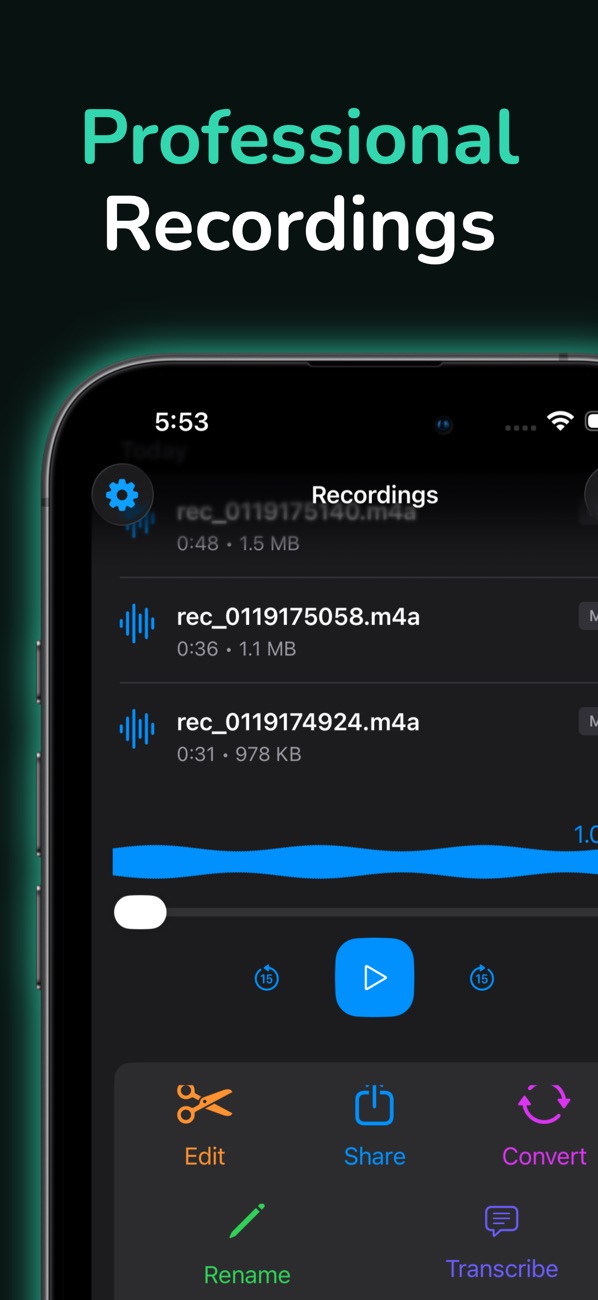
| "Every session is saved automatically… MP3, WAV, M4A" | A tap on the graph feeding a file writer, off the real-time thread (section 5) |
| "Safety tips: Start with low volume… Avoid feedback by keeping device away from speakers" | The feedback realities in section 5, and starting at a low volume by default |
The listing's use cases range from live streaming, karaoke and podcasts to announcements and hearing assistance: amplifying voices in meetings or classes. That last one shapes my defaults most. For someone using your app to hear better, a feedback squeal or surprise route change isn't a glitch; it hurts. Hence "start quiet" and "stop on .oldDeviceUnavailable". It's also why the app still supports iOS 16.6 and carries the pre-iOS 17 permission path from section 2.
Android sidebar: Virtual Mic on Google Play
The same idea exists on Android as Virtual Mic on Google Play (10K+ downloads at the time of writing). Its listing highlights real-time noise reduction, echo cancellation, reverb and echo effects, an equaliser, input gain and output volume controls, and support for Bluetooth speakers and wired headphones.
On Android the building blocks are AudioRecord (capture) and AudioTrack (playback), or Google's Oboe C++ library over AAudio/OpenSL ES for low-latency work. Same problems (latency, routing, feedback, audio focus instead of interruptions), very different APIs. That's my next article.
9. Before you ship live audio: a 7-point checklist
- Permission flow is complete.
NSMicrophoneUsageDescriptionis specific; you ask at the moment of need; iOS 17+ usesAVAudioApplication, older versions fall back toAVAudioSession; denied users get an "Open Settings" path. - The session is configured on purpose.
.playAndRecord,.defaultToSpeaker, the Bluetooth options you actually want (A2DP for quality, HFP only when needed), and you log the real sample rate and buffer duration you got. - Formats come from the hardware. You connect using the input node's format, check it's valid, and rebuild connections whenever the route or configuration changes.
- Feedback has defaults. Start at low volume, recommend headphones or distance, offer voice processing as a user choice, and use echo-cancelled input only where
isEchoCancelledInputAvailablesays you can. - Interruptions and route changes are tested on a real device. Phone call, alarm, Siri, unplugging headphones, Bluetooth disconnecting, AirPlay switching: the app ends up in a sensible, visible state every time.
- Background behaviour is honest. The
audiobackground mode is declared only because you really play audio in the background, and you deactivate the session with.notifyOthersOnDeactivationwhen the user stops. - The real-time thread stays clean. No allocations, locks, logging or file I/O inside render callbacks or taps; heavy work is handed off.
Wrapping up
A mic-to-speaker app is a great way to learn iOS audio because there's nowhere to hide: latency is audible, routing mistakes are obvious, and a missed interruption leaves a silent app. AVAudioSession plus AVAudioEngine give you everything you need in a few hundred lines of Swift, as long as you respect the session, follow the hardware's formats and handle real-world events.
If you want to see the result in action, try my apps:
- Mic to Speaker – Virtual Mic (iOS): https://apps.apple.com/us/app/mic-to-speaker-virtual-mic/id1514011963
- Virtual Mic (Android): https://play.google.com/store/apps/details?id=com.aryansbtloe.microphone.android
- All 24 of my free iOS apps: https://apps.apple.com/us/developer/alok-singh/id1508795536
- My portfolio: https://bestlatestapps.com/alok/
If you've shipped live audio on iOS and hit a problem I didn't cover, I'd love to hear about it in the comments. Follow me here on Medium for the Android version of this guide.
— Alok Kumar Singh