Shipping a 4K Wallpaper App Without Running Out of Memory: ImageIO Downsampling, Core Image Blur and Add-Only Photos Access
Decoded-image maths, thumbnails that don't decode the full file, a blur editor that keeps edges clean, saving with the minimum permission, and why your app can't set the wallpaper itself
A wallpaper app looks like the simplest kind of app there is: a grid of pictures, tap one, save it. Then you load forty 4K images into a scrolling grid on an older iPhone, and the system terminates your app for using too much memory.
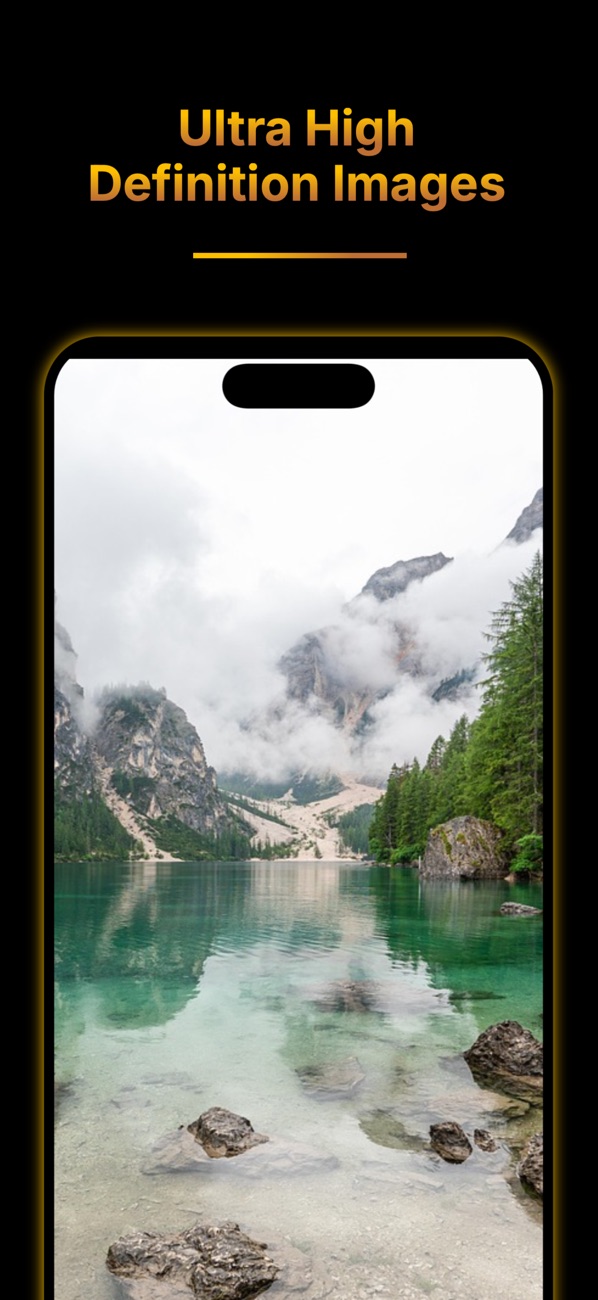
My app Wallpapers HD: Exotic 4K lists "fresh 4K HD wallpapers", "parallax-ready backgrounds that look sharp on every iPhone display", a Create mode to "edit photos and add blur effects", categories from Nature and Anime to Space and Minimalism, search, and saving so you can set an image as your Lock Screen or Home Screen. It's been on the App Store since December 2022.
Every one of those features runs into the same physical fact: a decoded image costs width × height × 4 bytes, no matter how small the file is. This article covers how I'd build a wallpaper app around that fact. That means downsampled thumbnails with ImageIO, full-resolution images only when needed, a Core Image blur editor, saving with add-only Photos access, and an honest explanation of the "set as wallpaper" step. API names and availability are checked against Apple's documentation, and this is the approach I'd use rather than the app's exact source.
1. The memory maths everyone forgets
A 4K image (3840 × 2160) might be a 2 MB JPEG on disk. Decoded for display, it's:
3840 × 2160 pixels × 4 bytes (RGBA) ≈ 33 MB
A grid showing 12 of those at once is around 400 MB of bitmap memory before you've scrolled anywhere. Yet a grid cell might be 120 × 260 points, about 360 × 780 pixels on a 3× display, which needs roughly 1.1 MB decoded.
So the rule is: never decode a bigger image than you're going to display. UIImage(data:) decodes at full size. ImageIO can decode straight to the size you need.
2. Downsampling with ImageIO
CGImageSourceCreateThumbnailAtIndex (iOS 4+) creates a smaller image directly from the compressed data, without ever holding the full-size bitmap in memory:
import ImageIO
import UIKit

enum Downsampler {
    /// Decodes `data` at most `maxPixelSize` on its longest side.
    static func image(from data: Data, maxPixelSize: CGFloat, scale: CGFloat) -> UIImage? {
        let sourceOptions = [kCGImageSourceShouldCache: false] as CFDictionary
        guard let source = CGImageSourceCreateWithData(data as CFData, sourceOptions) else { return nil }

        let options = [
            kCGImageSourceCreateThumbnailFromImageAlways: true,
            kCGImageSourceShouldCacheImmediately: true,      // decode now, off the main thread
            kCGImageSourceCreateThumbnailWithTransform: true, // respect EXIF orientation
            kCGImageSourceThumbnailMaxPixelSize: maxPixelSize
        ] as CFDictionary

        guard let cg = CGImageSourceCreateThumbnailAtIndex(source, 0, options) else { return nil }
        return UIImage(cgImage: cg, scale: scale, orientation: .up)
    }

    /// Same, from a file URL: avoids loading the whole file into memory first.
    static func image(at url: URL, maxPixelSize: CGFloat, scale: CGFloat) -> UIImage? {
        let sourceOptions = [kCGImageSourceShouldCache: false] as CFDictionary
        guard let source = CGImageSourceCreateWithURL(url as CFURL, sourceOptions) else { return nil }
        let options = [
            kCGImageSourceCreateThumbnailFromImageAlways: true,
            kCGImageSourceShouldCacheImmediately: true,
            kCGImageSourceCreateThumbnailWithTransform: true,
            kCGImageSourceThumbnailMaxPixelSize: maxPixelSize
        ] as CFDictionary
        return CGImageSourceCreateThumbnailAtIndex(source, 0, options)
            .map { UIImage(cgImage: $0, scale: scale, orientation: .up) }
    }
}
Two options do the important work:
kCGImageSourceShouldCache: falseon the source stops ImageIO from caching a full-size decode as a side effect.kCGImageSourceShouldCacheImmediately: trueon the thumbnail forces decoding now, which you'll do on a background task, instead of lazily on the main thread during the first draw, where it causes scroll hitches.
On iOS 15+, UIImage.preparingThumbnail(of:) is a convenient alternative when you already have a UIImage. But a UIImage made from data hasn't necessarily been decoded yet, and ImageIO gives you the most control.
3. A grid that stays smooth
Better still: don't download 4K images for the grid at all. Have your image host serve a small rendition for browsing and the full file only for the detail screen. Then downsample whatever arrives to the cell's pixel size anyway, because servers change.
import SwiftUI

actor ThumbnailCache {
    static let shared = ThumbnailCache()
    private let cache = NSCache<NSURL, UIImage>()
    init() { cache.totalCostLimit = 80 * 1024 * 1024 }    // ~80 MB of decoded thumbnails

    func image(for url: URL, pixelSize: CGFloat, scale: CGFloat) async -> UIImage? {
        if let hit = cache.object(forKey: url as NSURL) { return hit }
        guard let (data, _) = try? await URLSession.shared.data(from: url),
              let image = Downsampler.image(from: data, maxPixelSize: pixelSize, scale: scale)
        else { return nil }
        let cost = Int(image.size.width * image.scale * image.size.height * image.scale * 4)
        cache.setObject(image, forKey: url as NSURL, cost: cost)
        return image
    }
}

struct WallpaperCell: View {
    let thumbnailURL: URL
    @Environment(\.displayScale) private var scale
    @State private var image: UIImage?

    var body: some View {
        GeometryReader { geo in
            ZStack {
                Color(.secondarySystemBackground)
                if let image { Image(uiImage: image).resizable().scaledToFill() }
            }
            .frame(width: geo.size.width, height: geo.size.height)
            .clipped()
            .task(id: thumbnailURL) {
                let px = max(geo.size.width, geo.size.height) * scale
                image = await ThumbnailCache.shared.image(for: thumbnailURL, pixelSize: px, scale: scale)
            }
        }
        .aspectRatio(9.0 / 19.5, contentMode: .fit)
        .clipShape(RoundedRectangle(cornerRadius: 12))
    }
}
The details that matter:
NSCachewith a cost limit sized in decoded bytes, not image count, so the system can also evict under memory pressure..task(id:)cancels the load when a cell scrolls off-screen before finishing.@Environment(\.displayScale), notUIScreen.main.scale. Apple's docs now markUIScreen.mainas deprecated in iOS 26. Read the scale and screen size from the view's environment or window scene instead.
Why not just AsyncImage (iOS 15+)? It's fine for small images, but it decodes whatever it downloads at full size and has no memory-cost cache. For a wallpaper grid, owning the pipeline pays off.
4. The detail screen: full resolution, exactly once
When the user opens a wallpaper, they deserve every pixel, but only one full-size image should be alive at a time. Download to a file (it streams to disk instead of RAM) and decode to the device's native screen size rather than the source's 4K:
import UIKit

enum FullImageLoader {
    /// Downloads to a temporary file, then decodes at the screen's native pixel size.
    static func load(_ url: URL, nativeScreenSize: CGSize, scale: CGFloat) async throws -> (UIImage, URL) {
        let (tempURL, _) = try await URLSession.shared.download(from: url)
        // Move out of the system's temporary location before it's cleaned up.
        let kept = FileManager.default.temporaryDirectory.appendingPathComponent(url.lastPathComponent)
        try? FileManager.default.removeItem(at: kept)
        try FileManager.default.moveItem(at: tempURL, to: kept)

        let longest = max(nativeScreenSize.width, nativeScreenSize.height)
        guard let image = Downsampler.image(at: kept, maxPixelSize: longest, scale: scale) else {
            throw CocoaError(.fileReadCorruptFile)
        }
        return (image, kept)    // keep the file: saving uses the original bytes
    }
}
UIScreen.nativeBounds (iOS 8+) gives the screen's size in physical pixels. Get the screen from the current window scene (view.window?.windowScene?.screen) rather than UIScreen.main.
What about "parallax-ready"? iOS can apply motion and depth effects to wallpapers, and the system crops and zooms to fit the device. The practical rule: supply images at least as large as the native screen, in portrait, with the subject away from the edges, so the system has room to crop and move. That's why a 4K source is useful even though you decode the preview smaller. You save the original, not the preview.
5. Create mode: blur that keeps clean edges
"Create your own wallpapers — edit photos and add blur effects." Core Image's Gaussian blur is the right tool, with one classic gotcha: blurring pulls in transparent pixels from outside the image, which gives you a dark, soft border. Clamp the image to its extent first, then crop back:
import CoreImage
import CoreImage.CIFilterBuiltins
import UIKit

final class BlurEditor {
    private let context = CIContext(options: [.useSoftwareRenderer: false])
    private let source: CIImage

    init?(image: UIImage) {
        guard let ci = CIImage(image: image) else { return nil }
        source = ci
    }

    /// radius in pixels of the *output*; scale it if you preview at a smaller size.
    func render(radius: Double, dim: Double = 0) -> UIImage? {
        let blur = CIFilter.gaussianBlur()
        blur.inputImage = source.clampedToExtent()     // no dark edges
        blur.radius = Float(radius)
        var output = blur.outputImage?.cropped(to: source.extent) ?? source

        if dim > 0 {                                   // darken for legible clock and widgets
            let controls = CIFilter.colorControls()
            controls.inputImage = output
            controls.brightness = Float(-dim)
            output = controls.outputImage ?? output
        }

        guard let cg = context.createCGImage(output, from: source.extent) else { return nil }
        return UIImage(cgImage: cg)
    }
}
Performance tips for a live slider:
- Preview on the downsampled image and render the full-resolution output only when the user taps Save. Blur cost grows with the pixel count and the radius.
- Scale the radius between preview and export. A 20-pixel blur on a 1,290-pixel-wide preview is about a 60-pixel blur on a 3,840-pixel export.
- Reuse one
CIContext. Creating a context per slider tick is the slowest possible way to use Core Image.
The optional dim parameter is a small design touch: a slightly darker, blurred background keeps the Lock Screen clock and widgets readable.
6. Saving with the minimum permission
Saving an image to Photos doesn't require read access to the user's library. iOS has an add-only access level for exactly this:
import Photos
import UIKit

enum PhotoSaver {
    enum SaveError: Error { case denied }

    /// Saves the original file bytes (not a re-encoded UIImage) to Photos.
    static func saveOriginal(fileURL: URL) async throws {
        let status = await PHPhotoLibrary.requestAuthorization(for: .addOnly)   // iOS 14+
        guard status == .authorized || status == .limited else { throw SaveError.denied }

        try await PHPhotoLibrary.shared().performChanges {
            let request = PHAssetCreationRequest.forAsset()
            request.addResource(with: .photo, fileURL: fileURL, options: nil)
        }
    }

    /// For edited images from Create mode.
    static func save(_ image: UIImage) async throws {
        let status = await PHPhotoLibrary.requestAuthorization(for: .addOnly)
        guard status == .authorized || status == .limited else { throw SaveError.denied }
        try await PHPhotoLibrary.shared().performChanges {
            PHAssetChangeRequest.creationRequestForAsset(from: image)
        }
    }
}
- Declare
NSPhotoLibraryAddUsageDescription(iOS 11+), not the full-library key. For example: "Save wallpapers you choose to your photo library." requestAuthorization(for: .addOnly)(iOS 14+) asks only for what you need. Users are far more likely to allow it, and you never see their photos.- Save the original file with
PHAssetCreationRequest.addResource(with:fileURL:options:)(iOS 9+). Re-encoding aUIImagecan cost quality and strip metadata.
7. The honest part: you can't set the wallpaper for the user
There's no public iOS API that lets an app set the Lock Screen or Home Screen wallpaper. A wallpaper app's job ends at "saved to Photos", and the user sets it from the Photos app or from Settings → Wallpaper.
So make that last step effortless:
- After saving, show a short, illustrated guide: Photos → open the image → Share → Use as Wallpaper.
- Offer a button that opens Photos. Don't promise a one-tap "Set" button you can't deliver; App Review and users both dislike that.
- Mention that the system lets you pinch and position the image, and that depth and motion options depend on the device and iOS version.
The listing's own wording handles this well: "Save the image… Set it as your Lock Screen or Home Screen wallpaper". It's a user step, described as one.
8. Real-world example: Wallpapers HD: Exotic 4K
These are the techniques I'd use, and recommend, for Wallpapers HD: Exotic 4K.
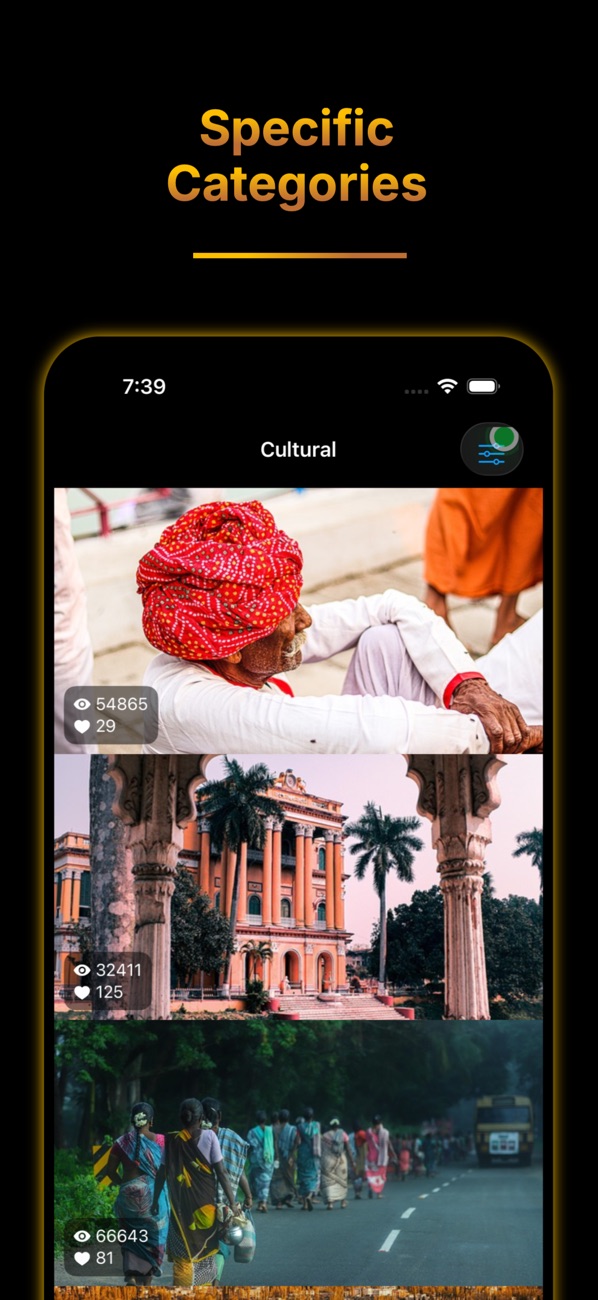
At the time of writing, its App Store listing shows:
- Free with an optional Premium tier, in Photo & Video and Graphics & Design
- First released in December 2022
- 6 ratings in the US store, all 5 stars
- Supports iOS 16.0 and later
How the listing maps to this article:
| What the listing says | Where it's covered |
|---|---|
| "Fresh 4K HD wallpapers added regularly" / "Browse by category… Quick search" | A small rendition for the grid, downsampled and cost-cached (sections 2–3) |
| "Parallax-ready backgrounds that look sharp on every iPhone display" | Native-size preview, original saved, room for system cropping (section 4) |
| "Create your own wallpapers — edit photos and add blur effects" | Clamped Gaussian blur with optional dimming (section 5) |
| "Save the image… Set it as your Lock Screen or Home Screen wallpaper" | Add-only Photos saving, then a guided user step (sections 6–7) |
| "Free: Browse and download HD wallpapers with ads / Premium: … advanced blur effects… ad-free" | Gate the content and editor features by entitlement; the pipeline is the same |
9. Before you ship an image-heavy app: a checklist
- Nothing is decoded larger than it's displayed. Grid cells use downsampled thumbnails sized in pixels.
- The cache is costed in decoded bytes with a sensible limit, and it responds to memory pressure.
- Scrolling is profiled on your oldest supported device with Instruments' Allocations and Animation Hitches tools.
- Full-resolution images are downloaded to disk, previewed at screen size, and saved as original bytes.
- Blur previews run on the small image and export at full size with a scaled radius.
- Photos access is add-only, with
NSPhotoLibraryAddUsageDescriptionand graceful handling of denial. - You don't promise "set wallpaper" automation. Guide the user through Photos instead.
UIScreen.mainis gone from new code. Use the environment'sdisplayScaleand the window scene's screen.- Image licensing is clear for every image you serve.
Wrapping up
A wallpaper app is really a memory-management app with nice pictures. Downsample with ImageIO, cache by decoded cost, keep exactly one full-size image alive, preview edits small and export big, save with the narrowest permission, and be straight with users about the last step only they can take.
Try it, or explore my other apps:
- Wallpapers HD: Exotic 4K (iOS): https://apps.apple.com/us/app/wallpapers-hd-exotic-4k/id6443850234
- All of my free iOS apps: https://apps.apple.com/us/developer/alok-singh/id1508795536
- My portfolio: https://bestlatestapps.com/alok/
What's the largest memory spike an image grid has ever given you? Tell me in the comments.
— Alok Kumar Singh